 Getting started
 Pipeline
 Forecasts
 Deals
Deals Deals (advanced)
 Proposals
 Exports
 Resources
 Integrations
 Settings
 Glossary
 FAQs
FAQs Releases
Pipeline
IN THIS ARTICLE
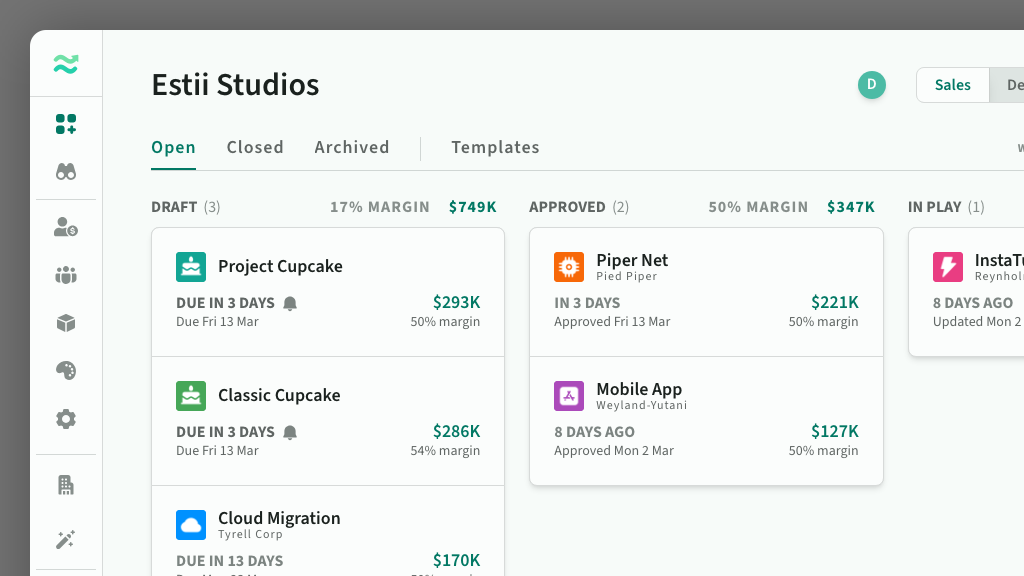
The deal pipeline is the central dashboard for all deals in your space. It enables you to create and manage deals, check their status, and view the total value of each stage in the pipeline lifecycle.
Getting started
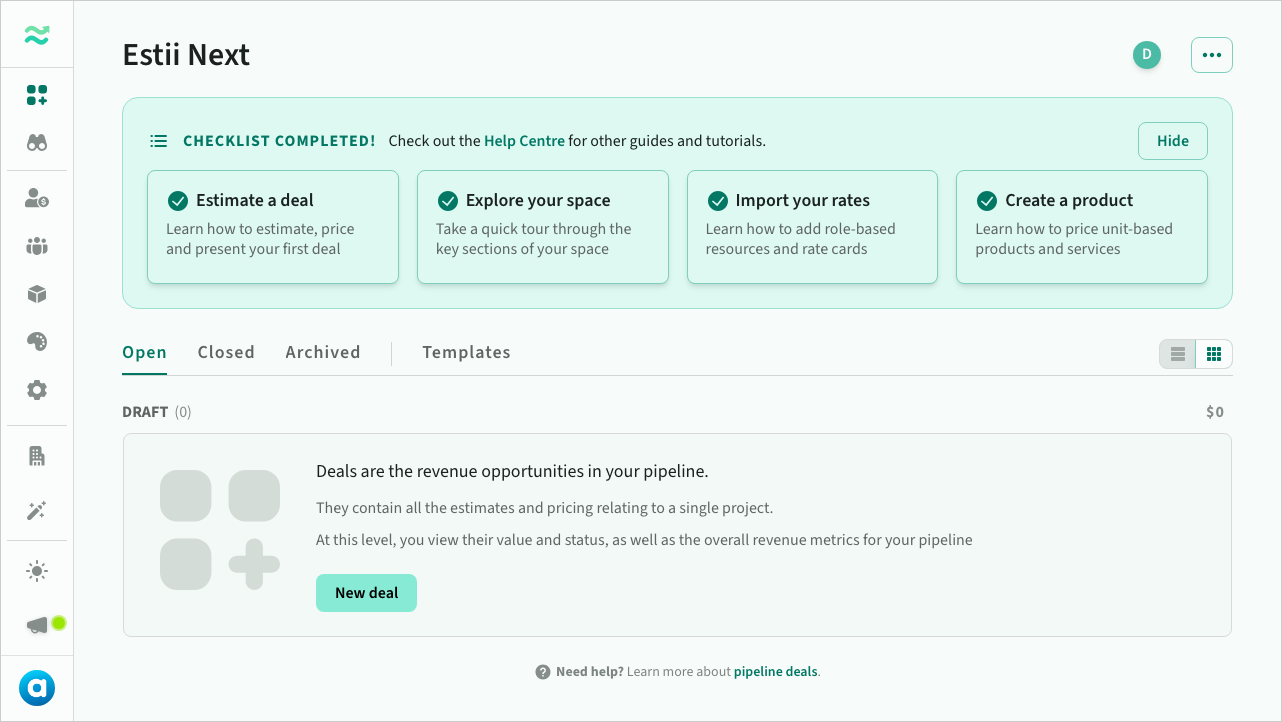
An inline Getting started panel guides new users through the key features of Estii. You can hide this panel once it is no longer required (or restore it via the help menu).
- Estimate a deal - an introduction to how to estimate, price and present your first deal
- Explore your space - a quick tour through the other key sections of your space
- Import your rates - learn how to setup the cost, price and margin of roles
- Create a product - learn how to create and configure a product for service and expense estimates
 Getting started
Inbox
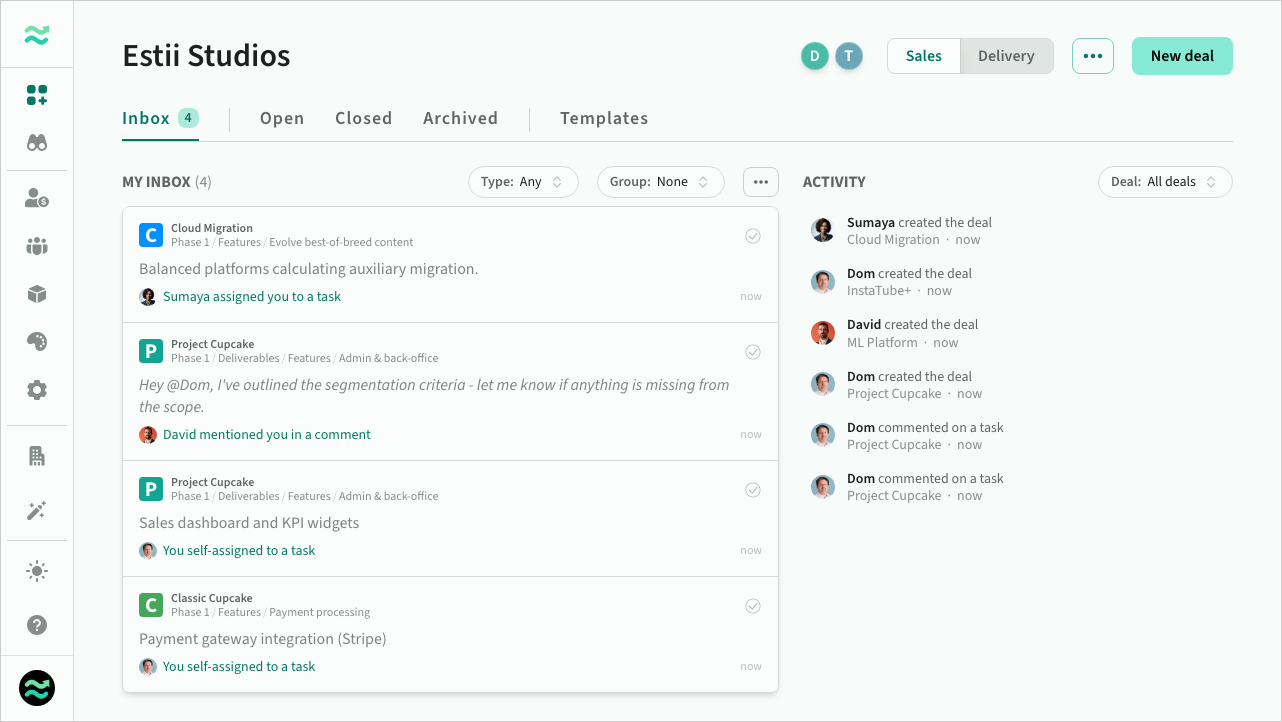
The Inbox tab on the pipeline shows your personal work queue - tasks assigned to you and comment threads you're involved in, across all deals. You can mark items as done, filter by deal or type, and group by deal. Click any item to jump straight to the task or comment.
Alongside the inbox, the Activity feed shows recent changes in your space, including deal status updates, pricing changes, and structural edits, so you can see what your team has been working on.
 Inbox and activity
Actions
- Mark as done — check off items as you complete them. Bulk-mark all visible items at once from the actions menu.
- Mark as read / unread — unread items are highlighted so you can see what's new.
- Show done — toggle visibility of completed items from the actions menu.
Filters and grouping
Use the toolbar to narrow your view:
- Deal — show items from a specific deal or all deals
- Type — filter by tasks, comments, or both
- Group — group items by deal for a compact overview
Pipeline deals
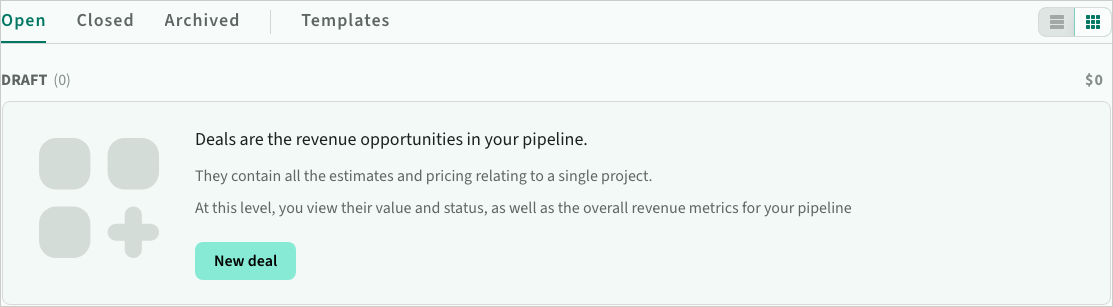
Deals are organised into three stages - open, closed and archived - correlating to the top level lifecycle of your pipeline. Templates are also available to help you create new deals quickly and easily.
 The open, closed, archived and template pipeline tabs
Click New deal to open the deal dialogue window. Follow the instructions to setup a new deal. You can also duplicate an existing deal, via the disclosure menu that appears on hover
Open deals
Once populated, the open tab contains lists of active deals grouped by status
- Draft deals with a pending due date
- Approved deals that are approved (and read only)
- In play deals that are progressing through the negotiation/closing stage
You can reorder deals and move them between stages.
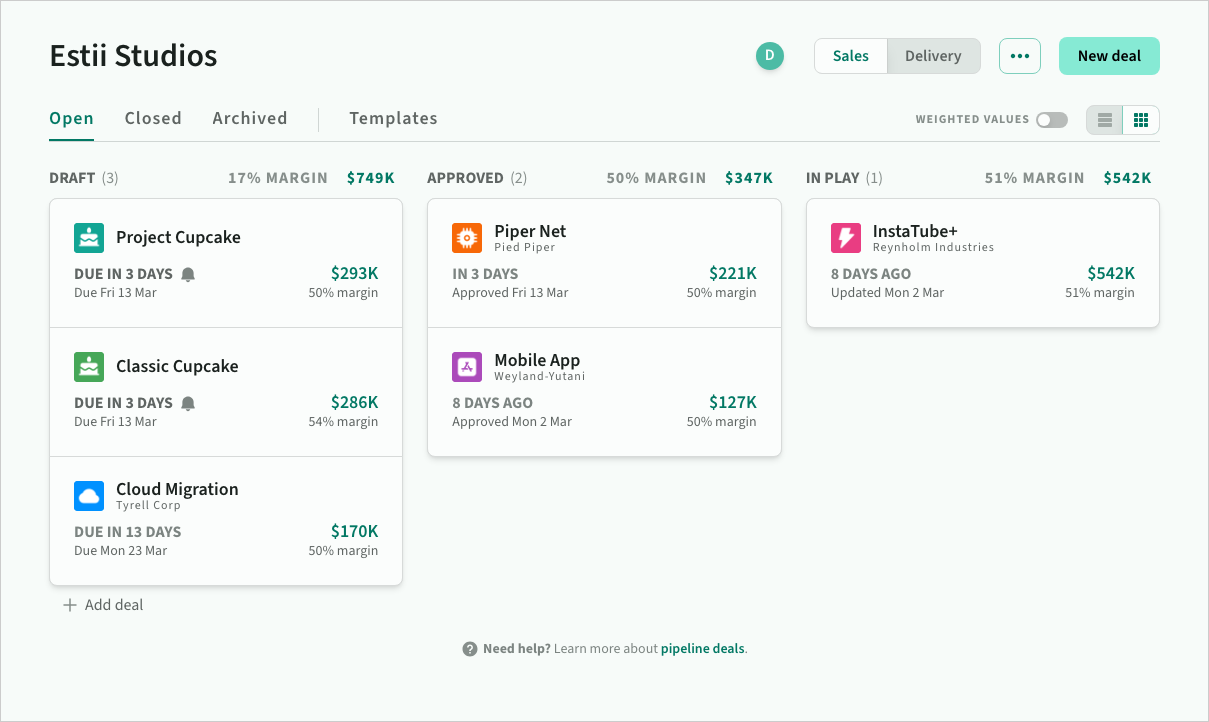 The open pipeline tab
Closed deals
The closed tab contains lists of actove deals that are won, lost or abandoned.
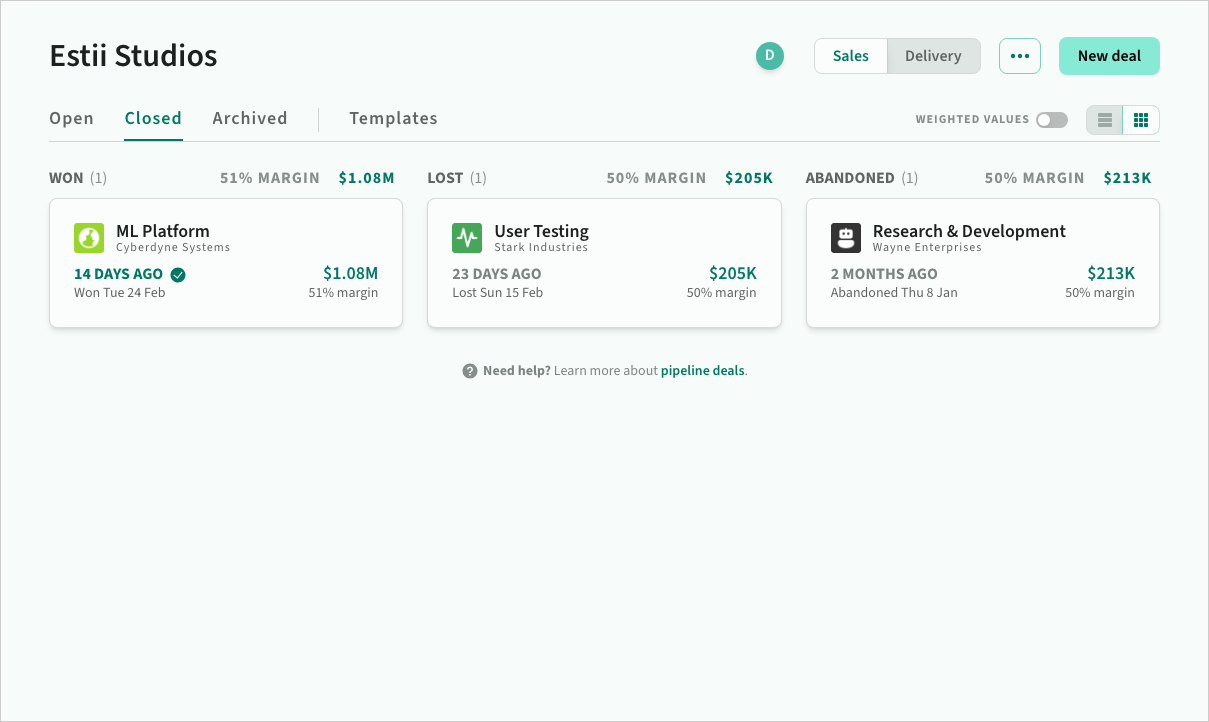 The closed pipeline tab
Archived deals
The Archived tab contains deals that have been archived. Archived deals are non-editable, and are excluded from pipeline metrics and deal limits.
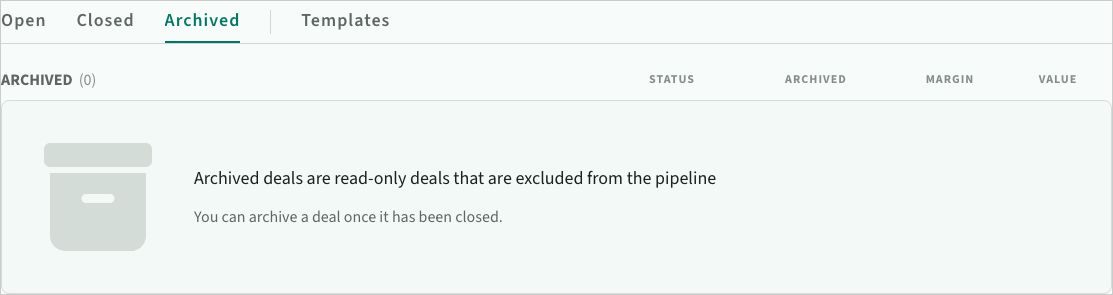 The archived pipeline tab
Templates
The Templates tab contains your deal templates for commonly used deal structures. This can help reduce the time and effort required to create new proposals, and further standardise and streamline your proposal creation process.
Here's how to use deal templates:
- To create a new deal template, select the "Save as Template…" option from the deal menu. You can then edit the contents just like a normal deal.
- Once the deal template is saved, you can access it easily from the templates tab on the pipeline and make any necessary updates or modifications as needed.
- To use a deal template, create a new deal, and select one from the list.
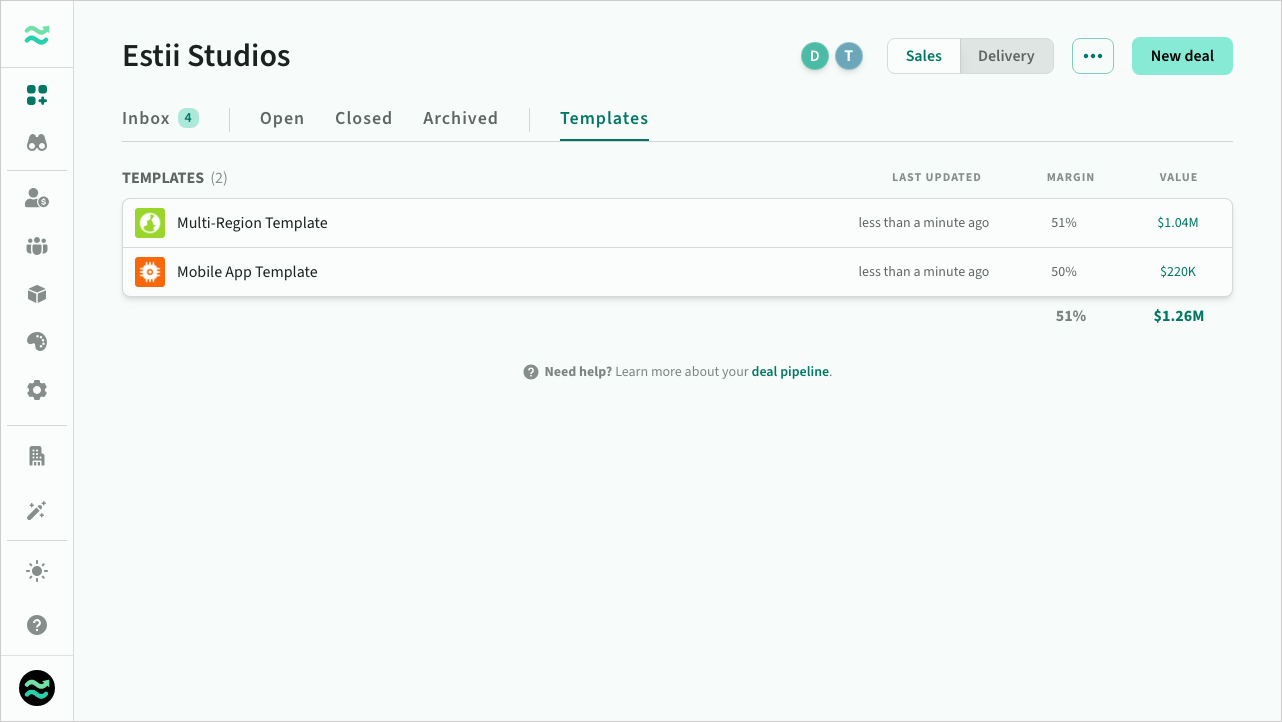 The templates pipeline tab