 Getting started
 Pipeline
 Forecasts
 Deals
Deals Deals (advanced)
 Proposals
 Exports
 Resources
 Integrations
 Settings
 Glossary
 FAQs
FAQs Releases
Estimates
IN THIS ARTICLE
Estimates are the building blocks of deal pricing. Each phase contains categories of items, line items and estimates that together determine the effort and cost of your deal.
How estimates are structured
Estimates follow a hierarchy within each phase:
Phase → Category → Section → Item → Line item → Estimate
- Categories are configurable containers defined by your phase template. Each category controls which resource types (roles, streams, products, custom prices) and pricing models (one-off, recurring, or both) are available
- Sections are optional named groupings within a category. Use sections to organise related items and display subtotals
- Items are collections of line items related to a functional area, epic or deliverable
- Line items are individual requirements or tasks within an item, each containing one or more estimates
- Estimates are resource allocations that calculate effort and cost (for example
Project Manager x 10 daysorHosting x 5 instances / month)
Categories
Categories appear as tabs on the estimates page. Your phase template determines which categories are available, what resource types they allow, and whether estimates are one-off, recurring, or both.
You can switch between categories using the tabs at the top of the estimates page.
Sections
Sections let you group related items within a category. Each section displays its own subtotal, making it easier to break down complex scopes.
To add a section, use the New section button within a category. Items can be moved between sections.
Items
Create an item
Create or insert a new item via the New item button. This will open the item window (see below).
You can also import existing items (see Import and export below).
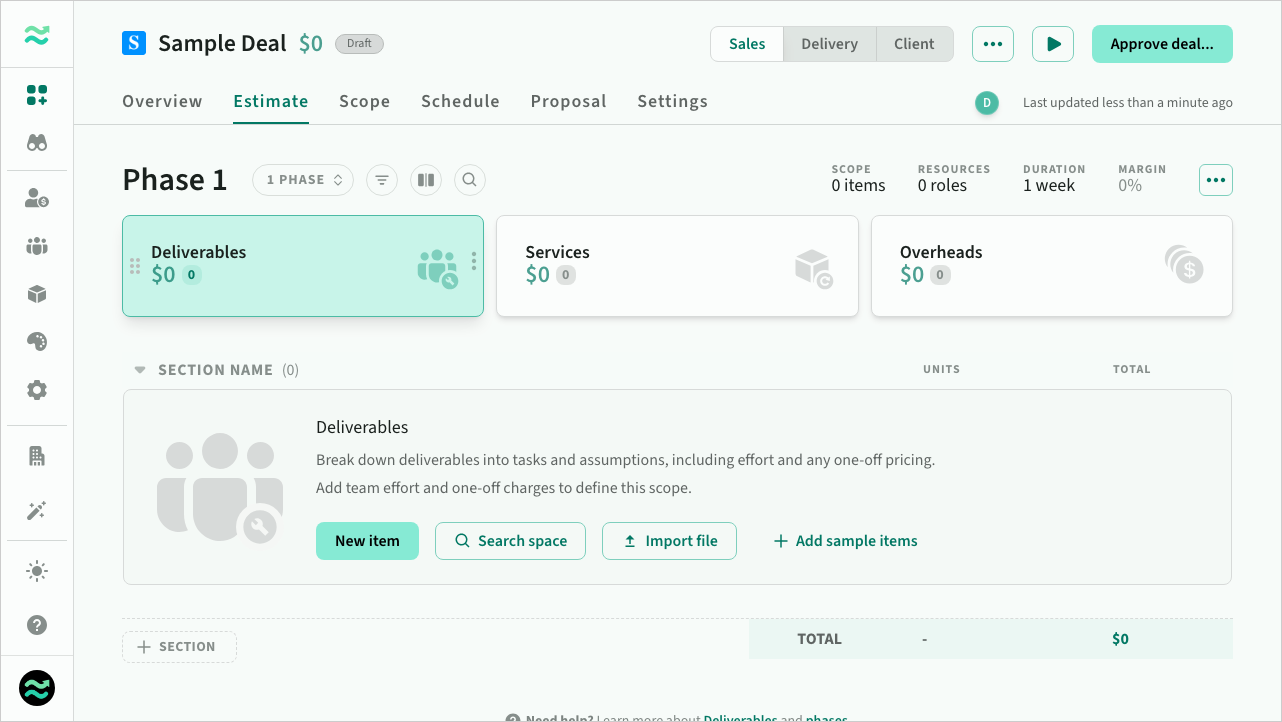 Create a new item from the estimates page
Edit an item
To view or edit an item, click on its name or expand it.
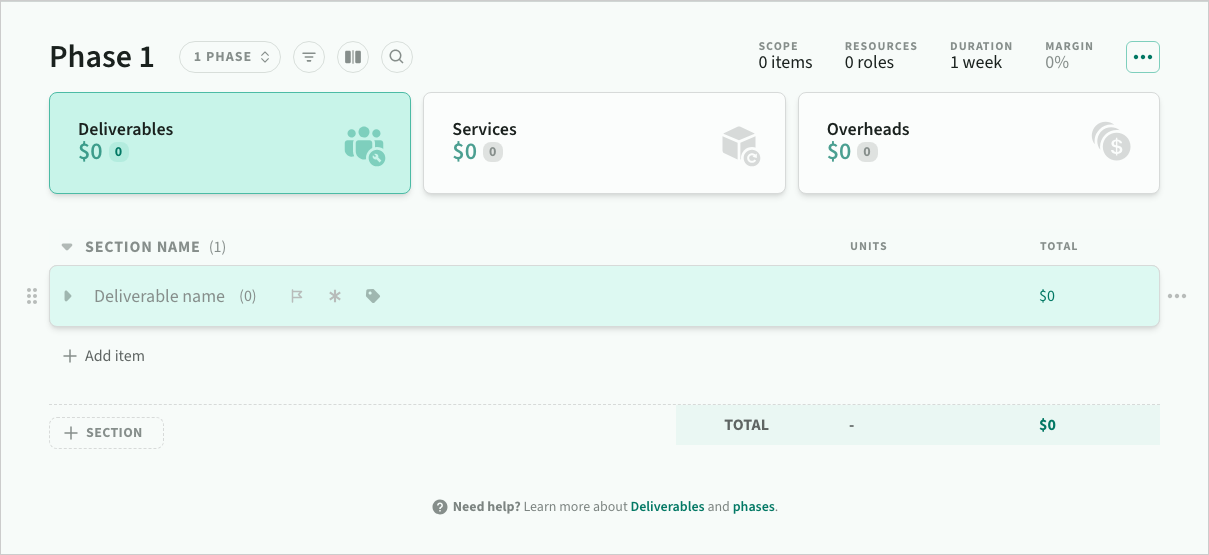 A newly created item
Item priority
Every item has a priority that can be set to low, normal, high, critical, or none (the default value).
Priority is used to track customer or internal value (like must/should/could) during estimation and presentation.
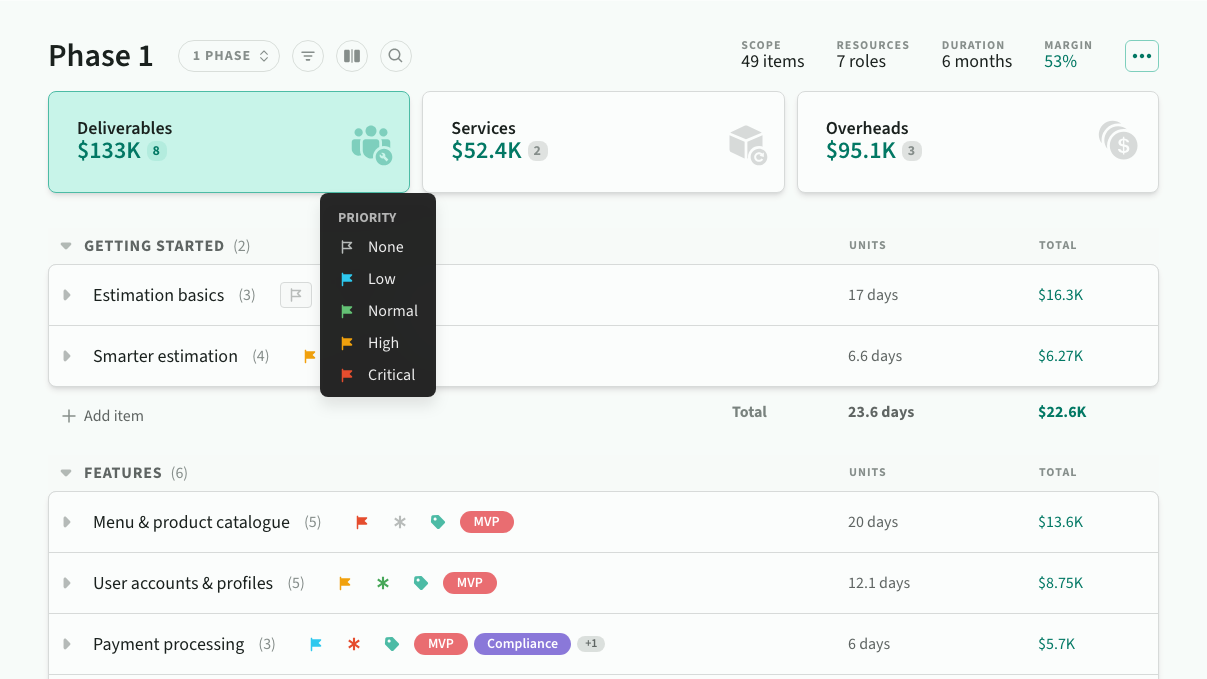 To set the item priority, click the priority icon
During pricing, priority is used to help measure and control scope based on priority.
- Users can track the overall size and value of each priority
- Users can add or remove items by priority (such as removing all low priority items)
- Users can adjust scope by gradually removing lower priority items
Item risk and contingency
Every item has a risk level that can be set to low, medium or high or none. Contingency is automatically applied to all estimates inside the item.
- Normal risk uses the default contingency (default value)
- Low risk uses the min contingency
- High risk uses the max contingency
- None risk will ignore contingency
Risk is used to calculate contingency, and weight items during scoping.
- Risk is used to calculate the amount of contingency to apply to all estimates within an item (the higher the risk, the higher the level of contingency). See Estimation for more details on defining contingency.
- Risk is also used to weight items when adjusting scope. Higher risk items (with lower priority) will always be descoped first. See Scope for more information on descoping rules.
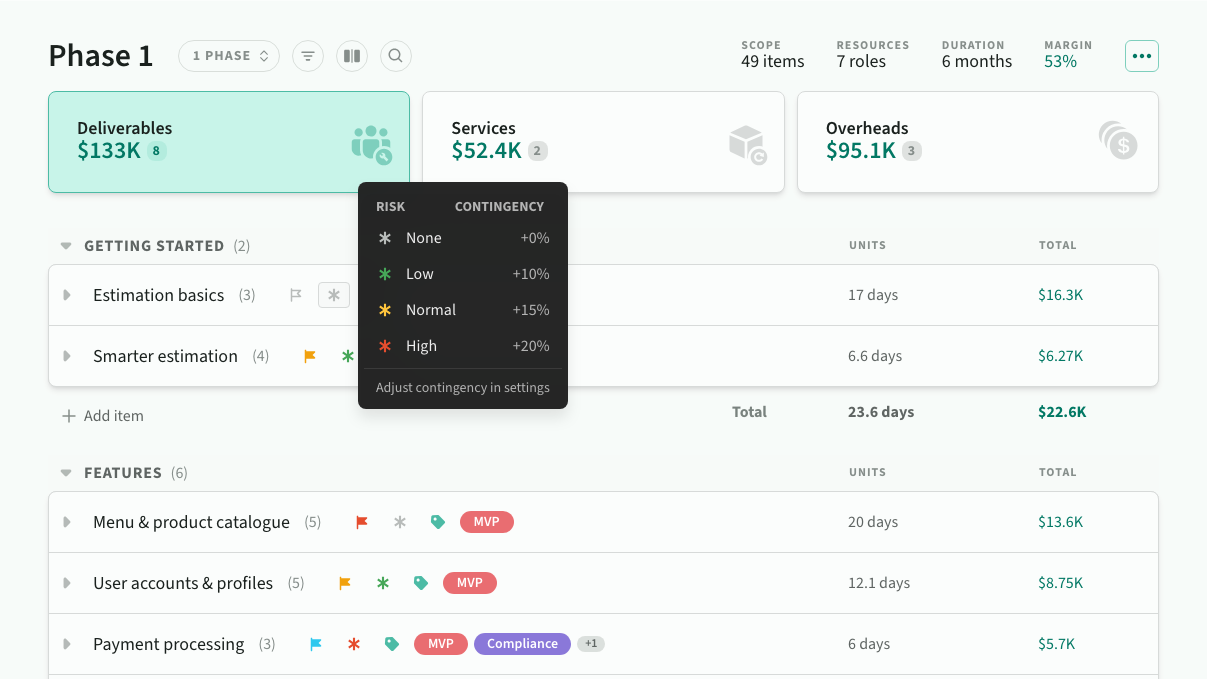 To set the item risk level, click the risk icon
Reorder items
Items can be reordered to reflect an underlying sequence or hierarchy to present to buyers.
You can also move items between phases via the action menu that appears on hover.
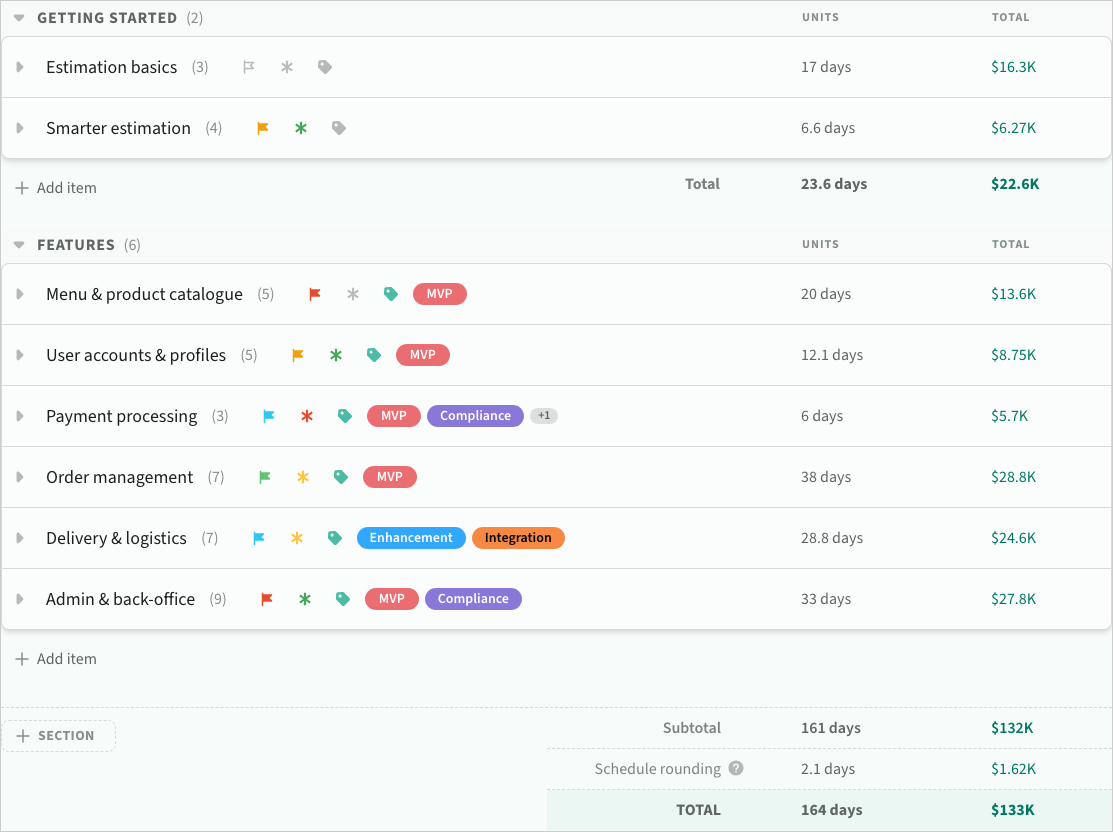 A list of estimated items
Line items
A line item is an individual requirement or task within an item
Line items contain a description and zero or more estimates that can be added and removed from scope. You can also add internal comments and assignees to a line item.
Add a line item
To add a new line item, click on the New line item button or expand an empty item. The item will expand automatically and focus on the name field.
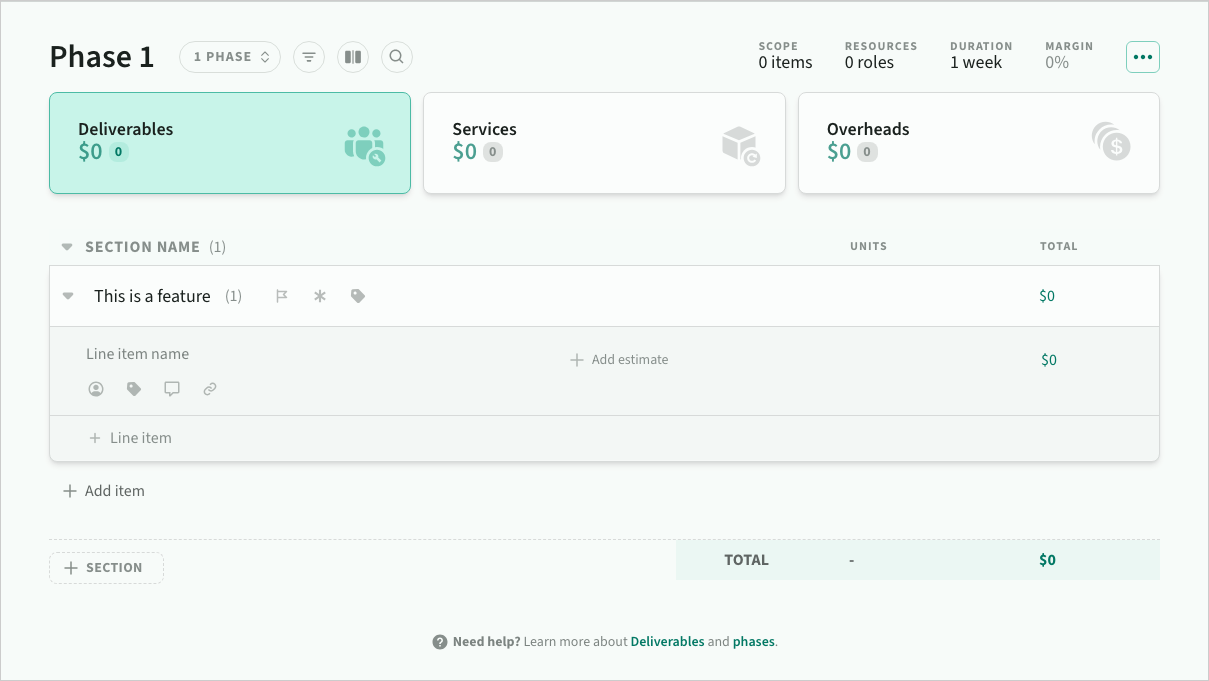 An expanded item showing a new line item
Line item descriptions
To add a description, type Enter at the end of the line item name.
Descriptions support rich-text formatting and layout options including headings, bold, italic and strikethrough, bulleted and numbered lists, redo/undo and copy/paste from clipboard.
Inline menu
You can access text and paragraph formatting options (as well as redo/undo) from the inline menu that appears when description text is selected/focused.
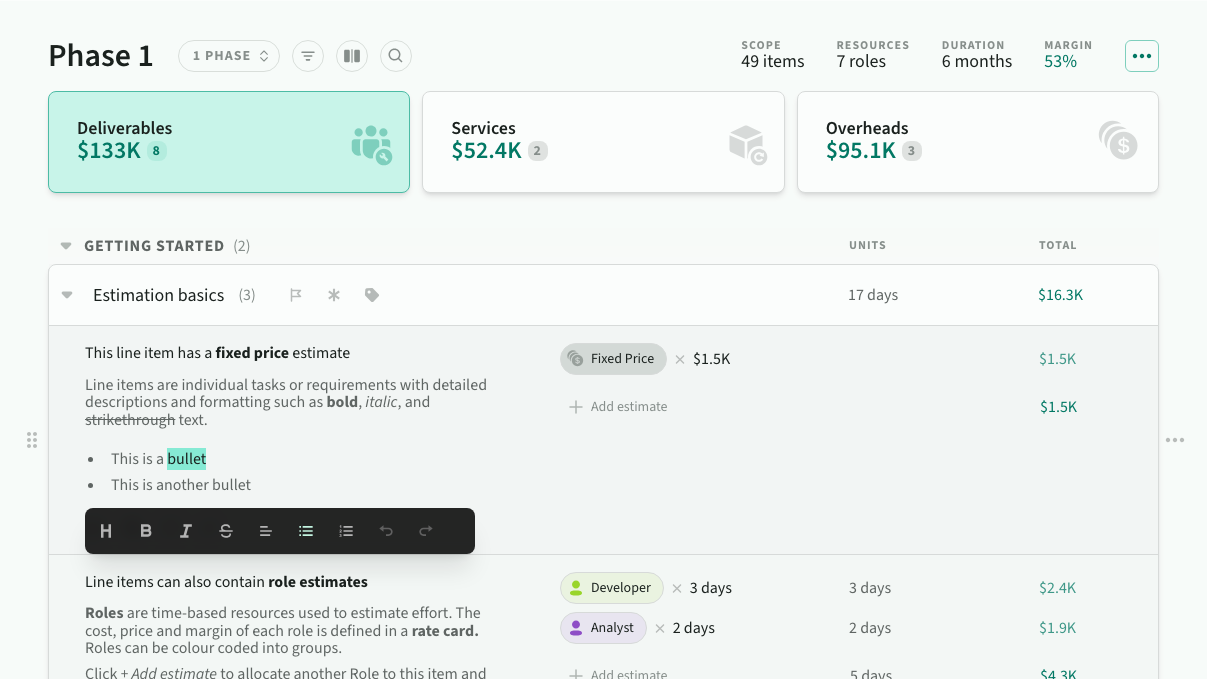 The inline formatting menu
Markdown
The editor supports markdown shortcuts to make it easy to format text while typing.
On a new line:
- Type
#followed byspaceto add a heading - Type
-,+or*followed byspaceto add a bulleted list item - Type
1.followed byspaceto add a numbered list item - Type
enterto clear an existing layout option
Within text
- Type
**bold**or__bold__to format bold text - Type
*italic*or_italic_to format italic text - Type
~~strikethrough~~to formatstrikethroughtext
Keyboard shortcuts
The editor also supports many standard keyboard shortcuts to make editing as easy as possible:
- Text formatting (e.g.
cmd/ctrl+b) - Paragraph formatting (e.g.
cmd/ctrl+alt+1for heading style) - Text selection (e.g.
shift+downto extend selection one line down) - Copy and paste from clipboard (e.g.
cmd/ctrl+vto paste content) - Redo/undo (e.g.
cmd/ctrl+zto undo)
Copy and paste
Estii makes it easy to copy and paste external requirements and maintain formatting
- When pasting into an empty line item, the first line will automatically be converted to a heading
- Name + description can have a total of 1024 characters (additional characters will be ignored when pasted)
- Pasting plain text, markdown or html. In the case of html, the editor will try to maintain as much external formatting as possible
- Text is copied to the clipboard as plain text markdown (for maximum compatibility)
Line item estimates
An estimate is a calculated price based on a specific resource and value (for example Fixed Price x $1.5K or Project Manager x 10 days or Design team x 1 week).
To add an estimate, select a resource type and adjust the units/value
- Estimate at any unit scale based on the unit type of the resource (currency, time, etc)
- Estii automatically calculates the total units and price in your space currency (and work units)
- Depending on the category, you can add one-off or recurring estimates
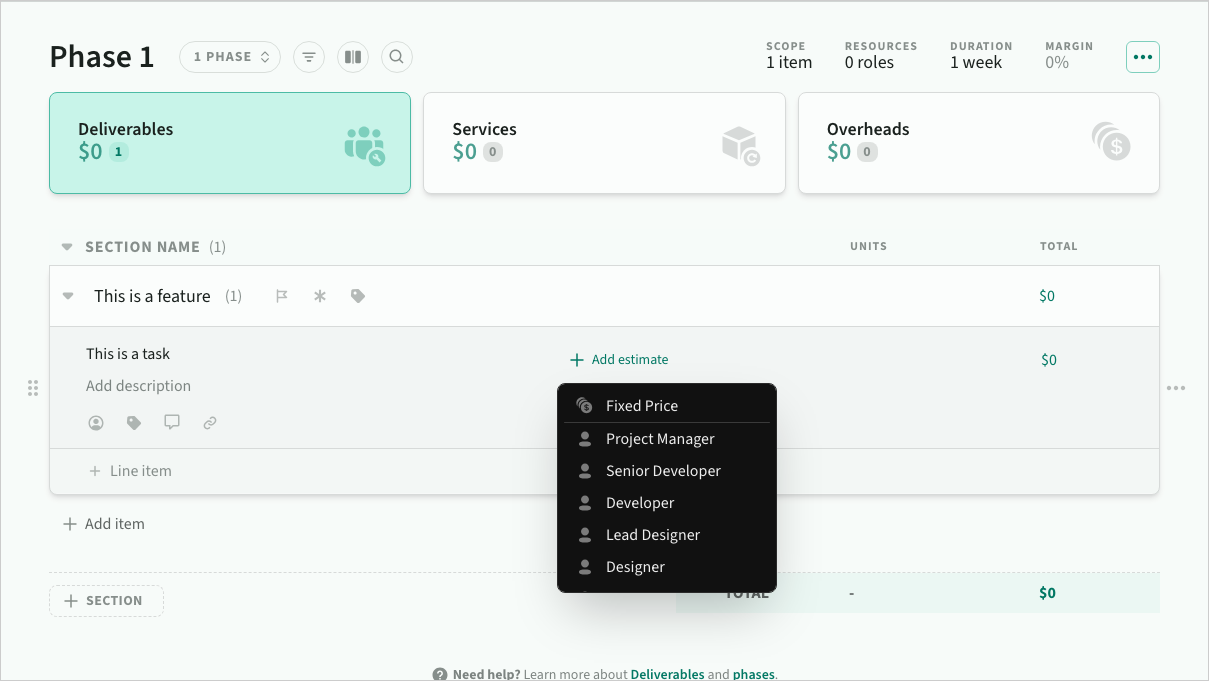 Choosing a resource to estimate
The resource types available depend on the category's rules:
- Fixed price (default) is a value in your space currency
- Roles and Streams are time-based resources
- Products are unit-based resources
Resources are color-coded by their tag, making it easier to scan estimates. Streams containing roles from multiple tags display a gradient indicating their mixed composition.
Line item breakdowns
You can click on any value in the units or total column to view a detailed breakdown of the calculations — this works across all categories and is available for individual estimates, line item totals, item totals and page totals.
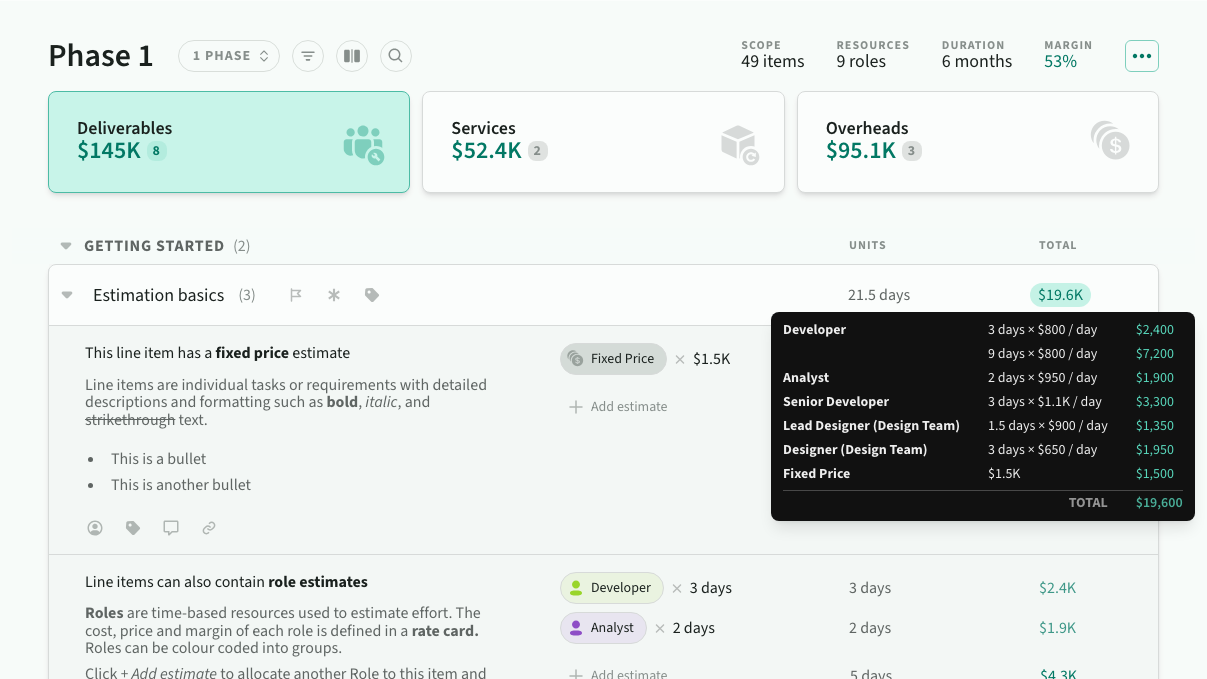 Line item and item totals contain a breakdown of everything inside them
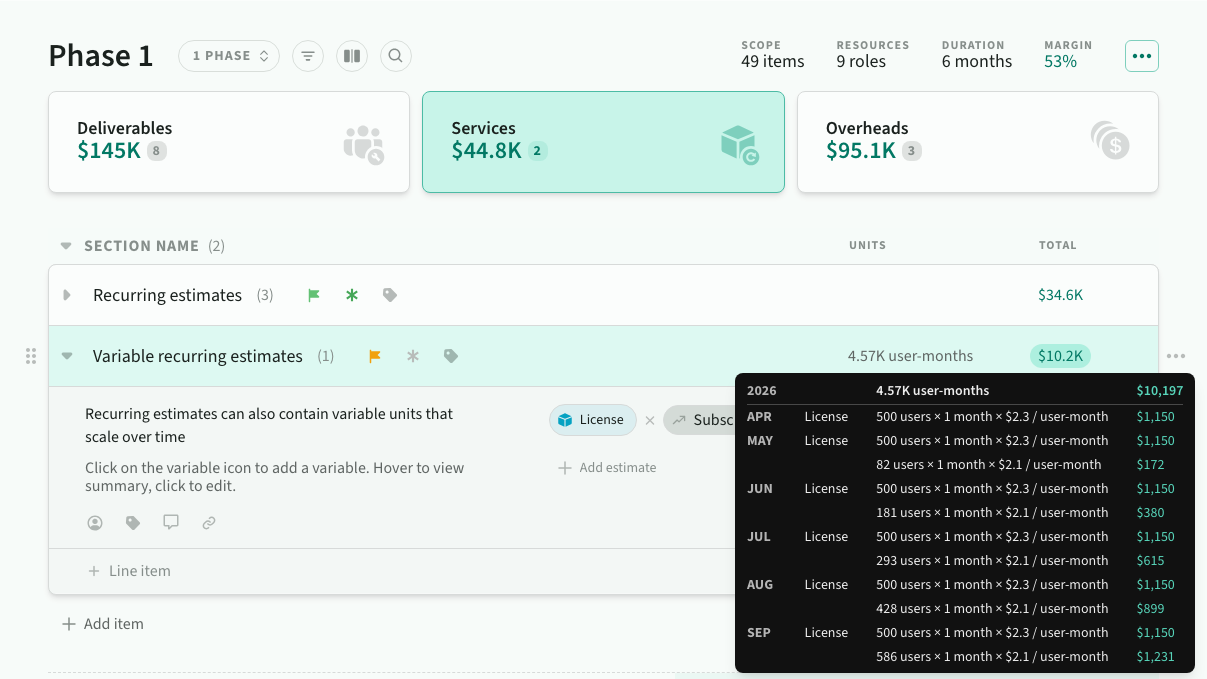 Recurring estimate breakdowns are grouped by month and year
Actions
Filters
You can filter items (and line items) within a deal via the filter menu.
- Scope — Any, Included, Excluded
- Assignee — Any, Unassigned, Member
- Priority — Any, None, Critical, High, etc
- Risk — Any, None, High, Low, etc
- Tag — Any, None, available tags
- Role tags — Filter by role tag (applies to role and stream estimates)
- Product tags — Filter by product tag (applies to product estimates)
- Comments — Any, None, Open, Resolved, All
- Commenter — Filter by comment author and @mentions
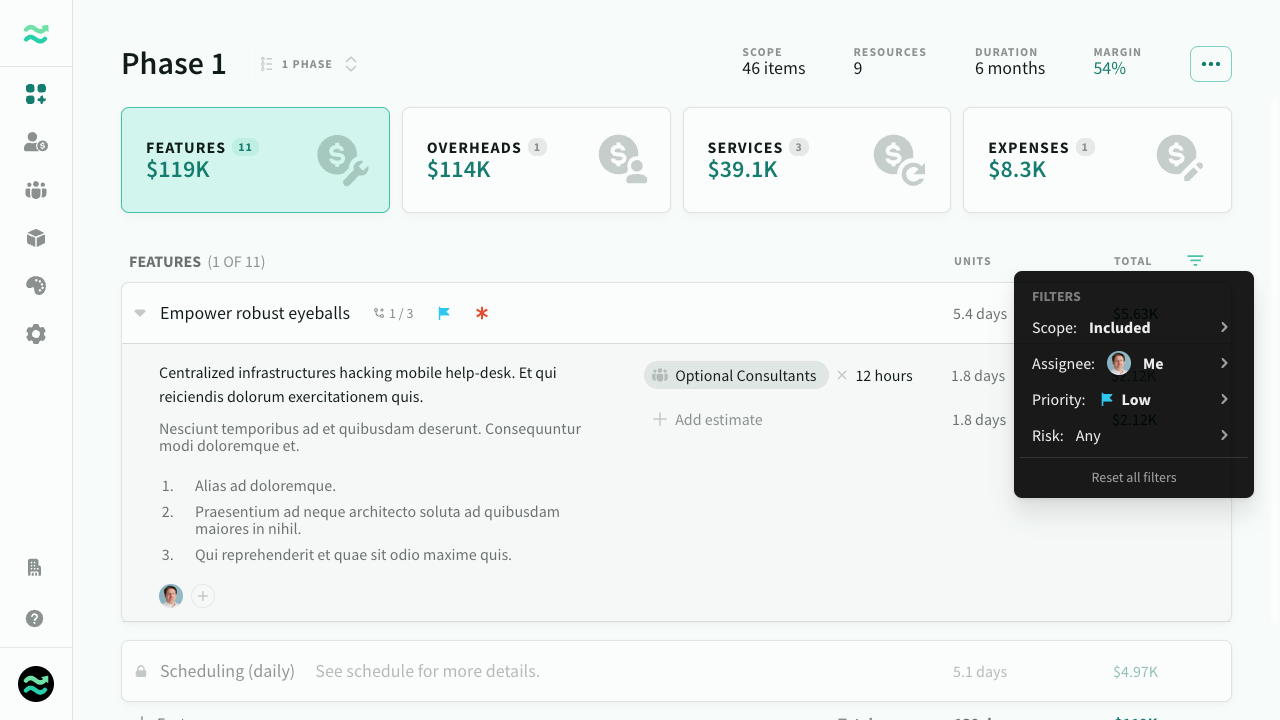 Filtering estimates
Adjusting scope
You can manually scope / descope items and line items. Descoped line items are greyed out and their price is set to 0.
To toggle scope, click on the scope button that appears on hover.
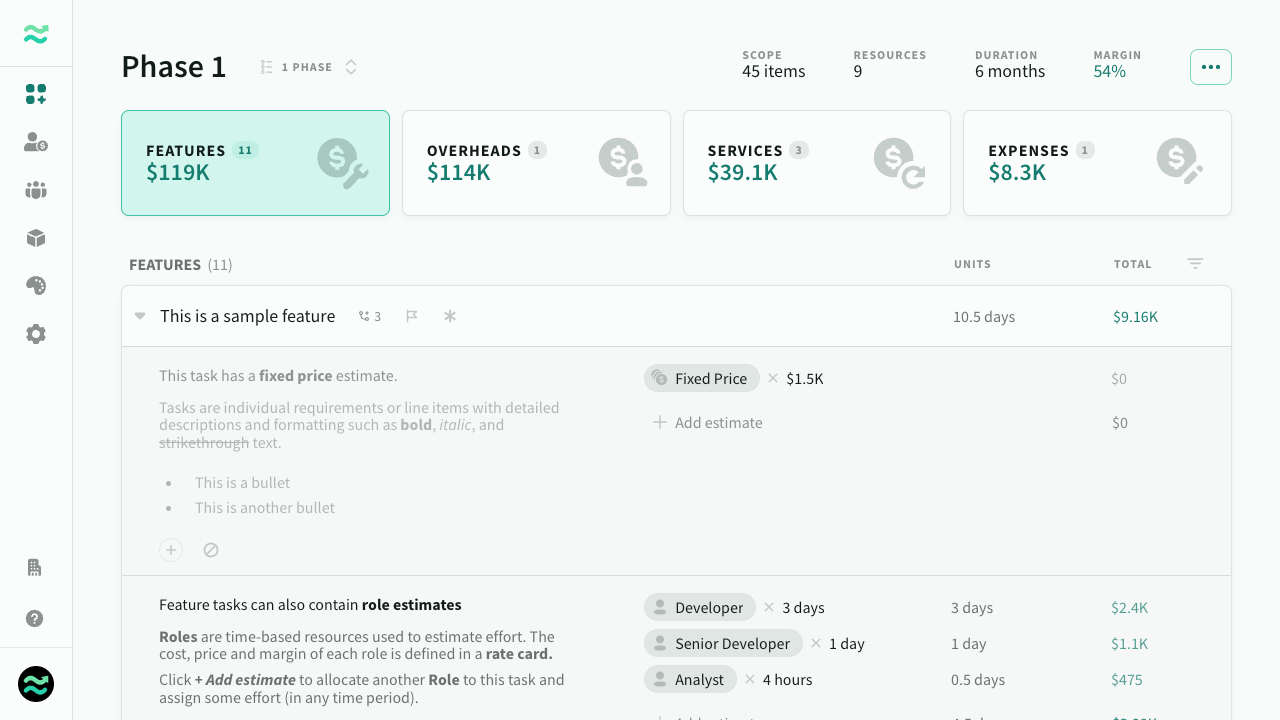 A descoped item
Deeplinks
You can generate a link to any line item, comment or item via the copy link menu action. Estii automatically expands, scrolls to, and highlights the linked item on screen.
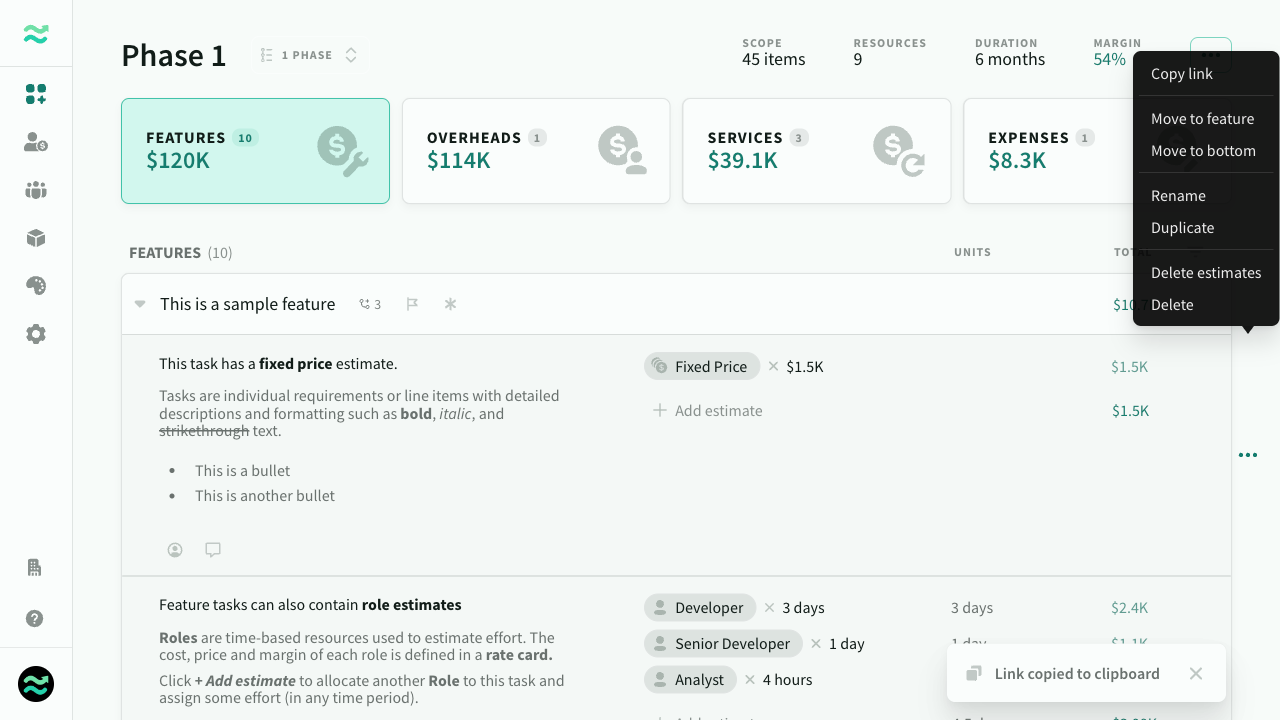 Copy link to the clipboard via the comment menu
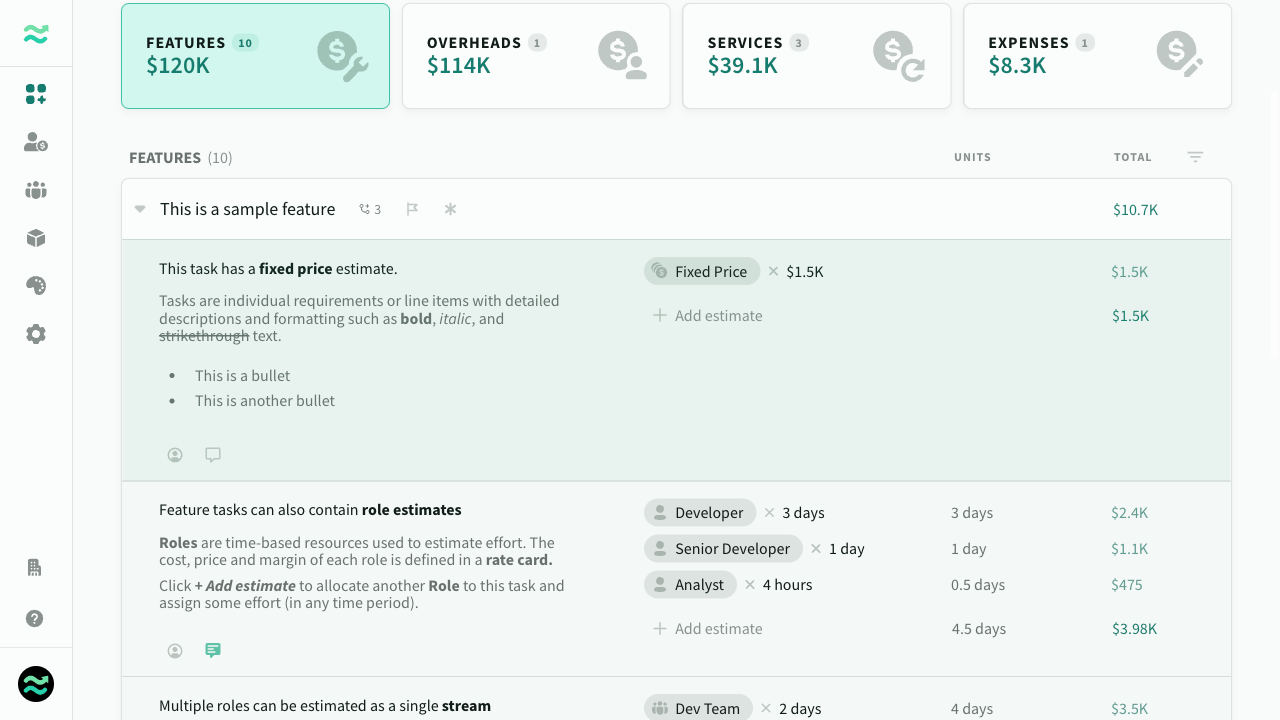 Deep links automatically expand and highlight on screen
Tags
Tag items and line items to track and scope related estimates, and set colours to group related tags. Once tagged, additional breakdowns appear on the scope page, so you can easily add or remove entire tags from scope.
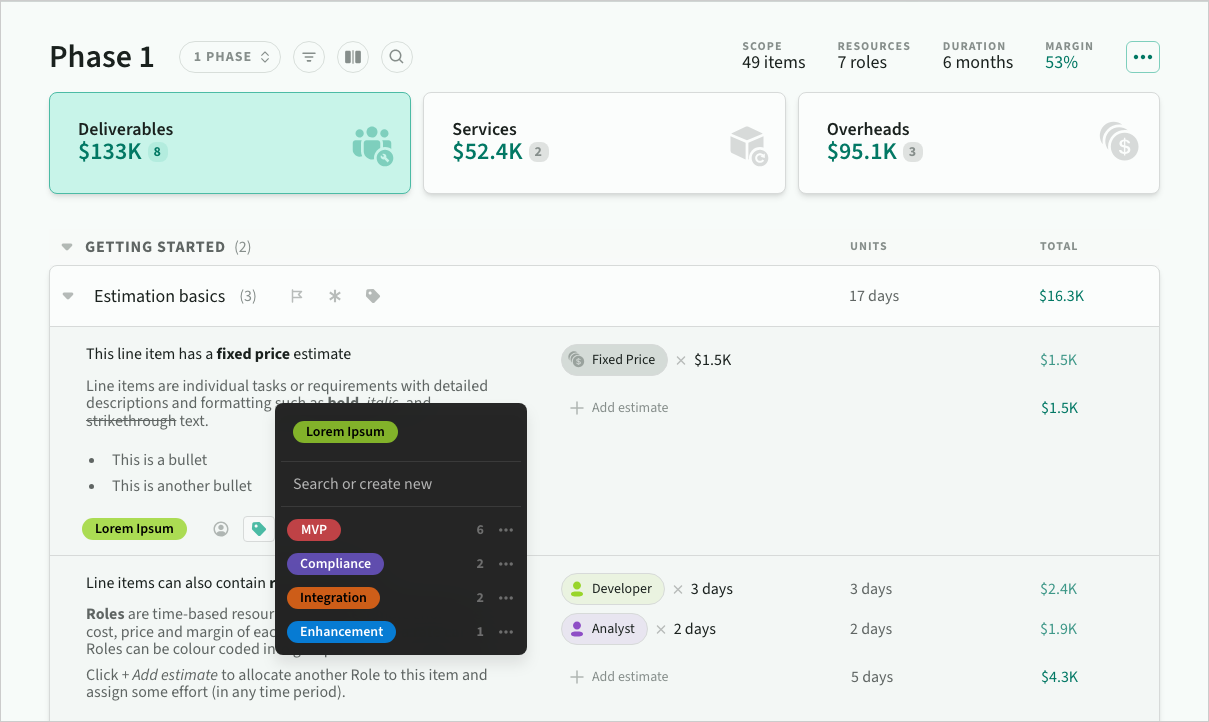 Tagging items and line items
For consistency, tags are shared across all deals. You can add, rename, merge or delete them from the tag input on any item or line item. If other deals reference a tag that no longer exists, it will remain local to that deal until it is remapped to another one.
Other tag usages
- Tag breakdowns per tag on the scope page
- Filter items by tag
- Included in deal export
Comments
You can add internal comments via the line item toolbar
- Add and reply to comments using formatted text and @mentions
- Resolve on completion
- Filter by status (open, resolved)
- Deep link to comment
- Navigate between comments
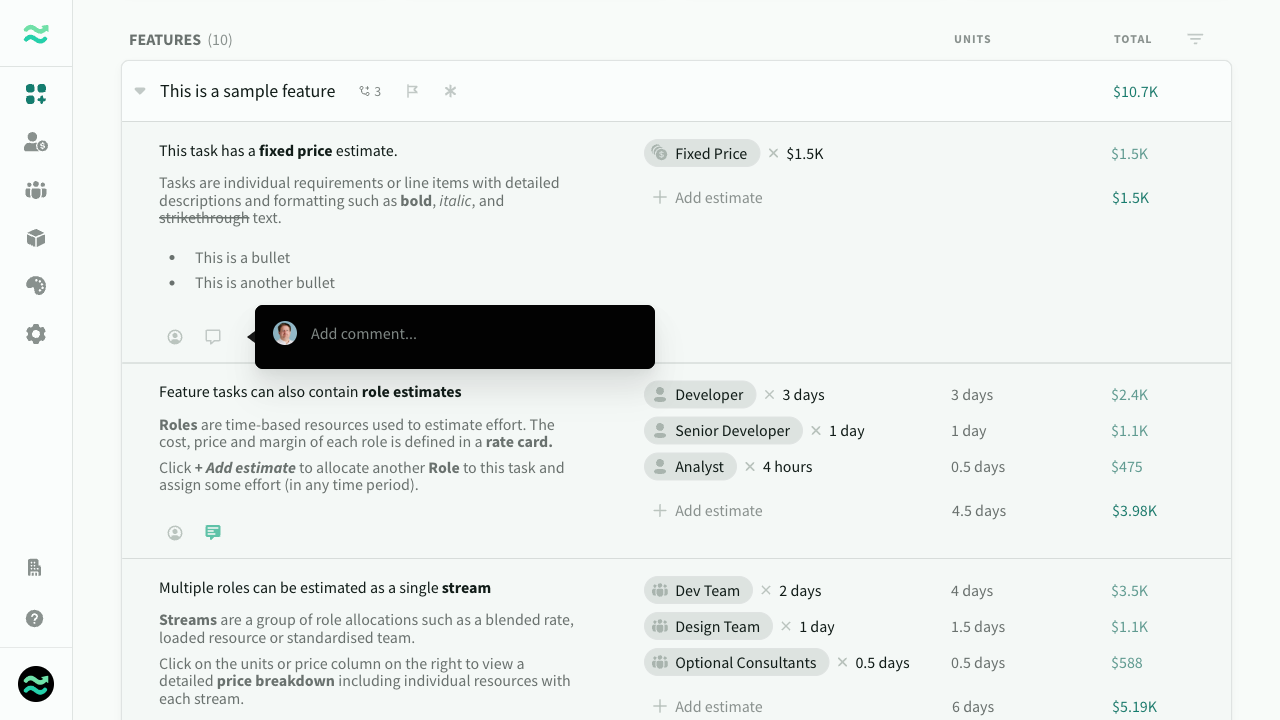 Adding a comment to a line item
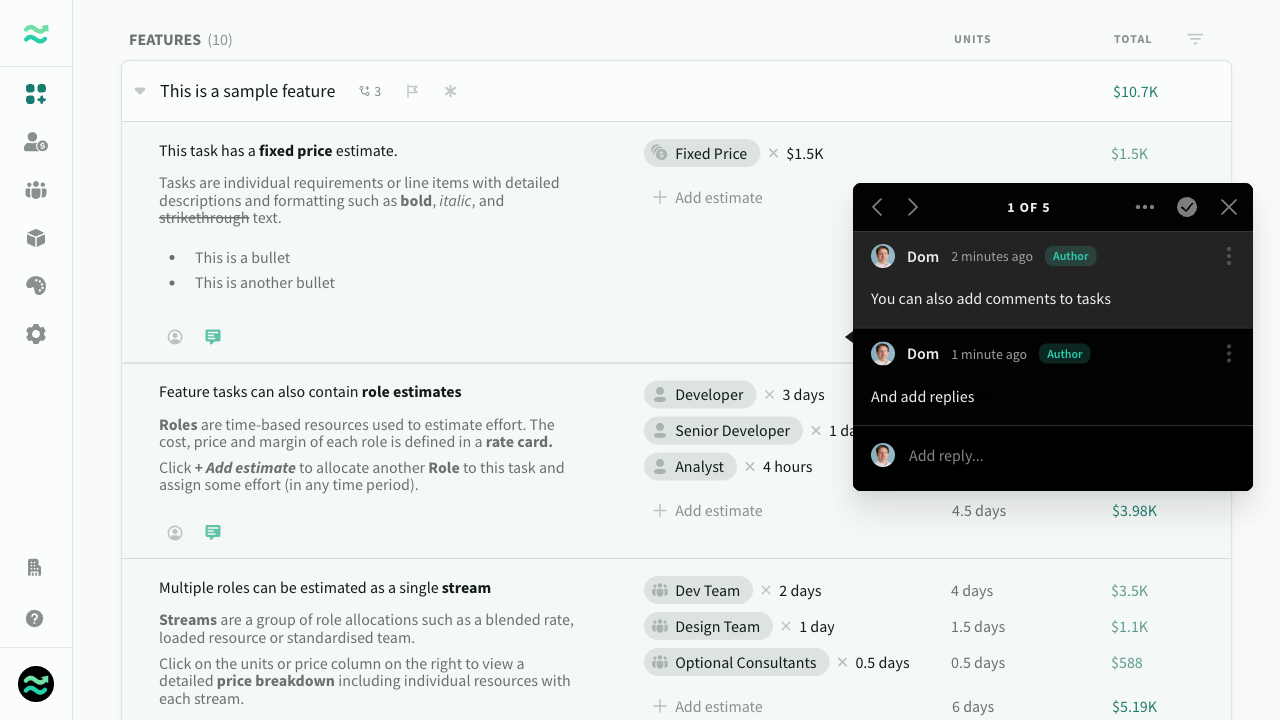 View and navigate between comments
Line item owners
You can assign members to line items to keep track of progress.
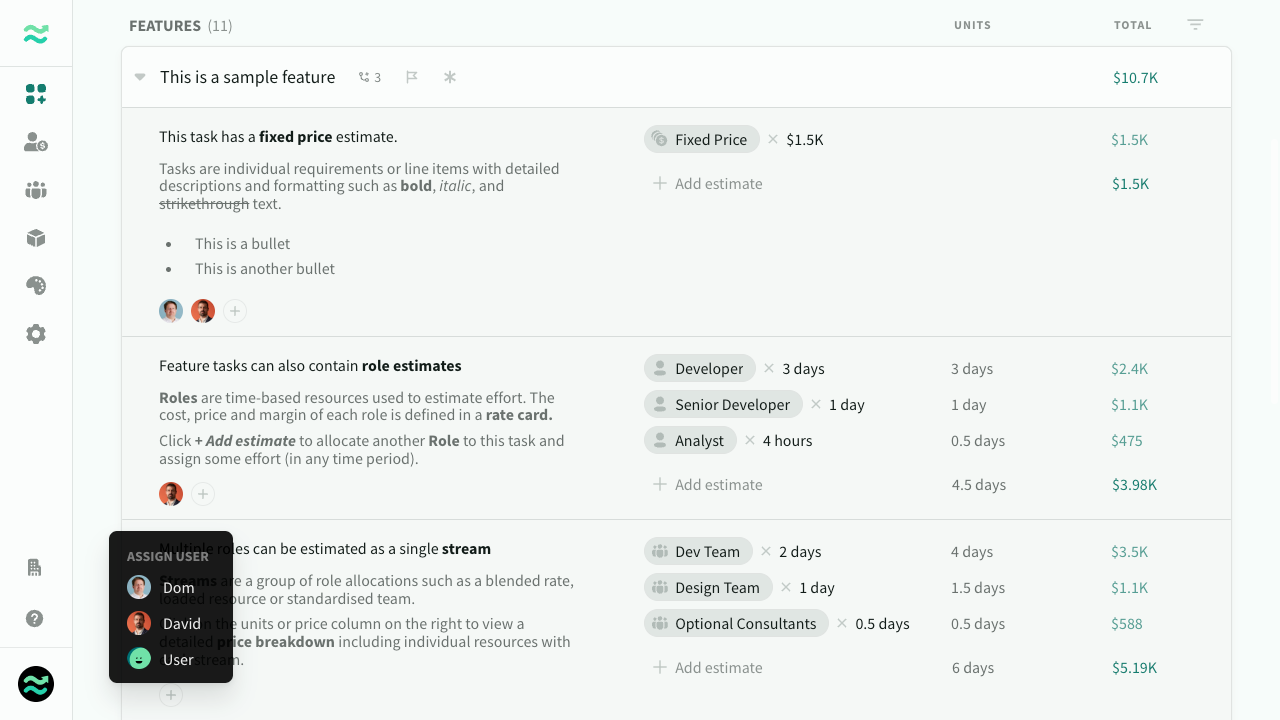 Assigning a user to a line item
Advanced
Scheduling estimate
Estii calculates the total allocation of roles across all items and rounds it up to the nearest day, week, fortnight or month based on the schedule delivery cycle.
If rounding is required, it will appear as a separate scheduling row below the items.
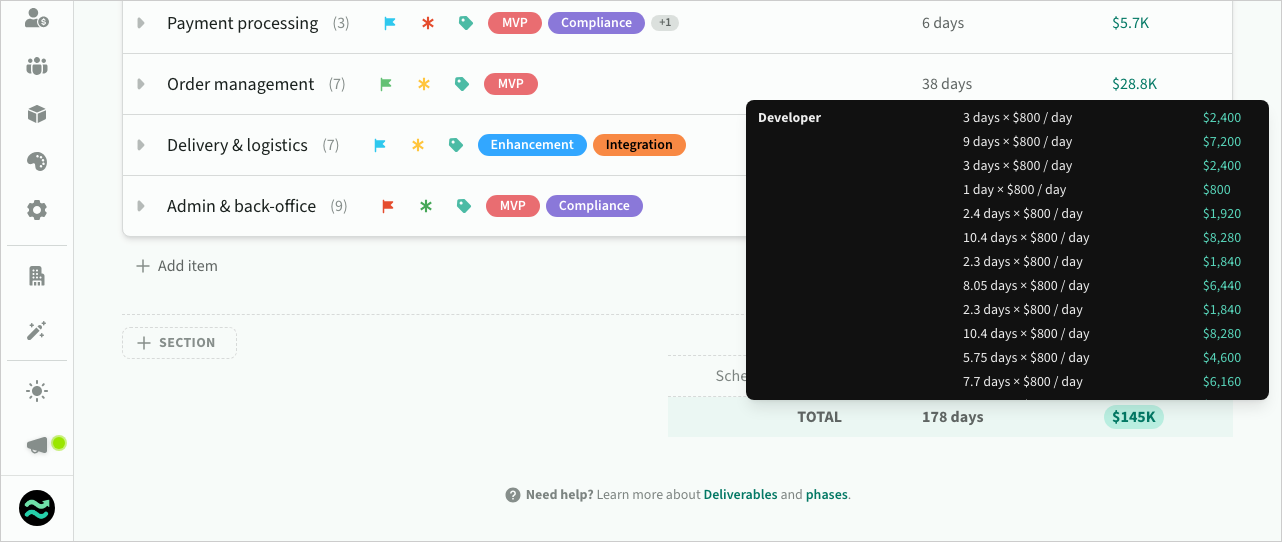 Summary of schedule rounding under estimates
Import and export items
You can bulk import and export items via the ... menu. You can use this to duplicate items between different phases and deals, or to integrate with external platforms.
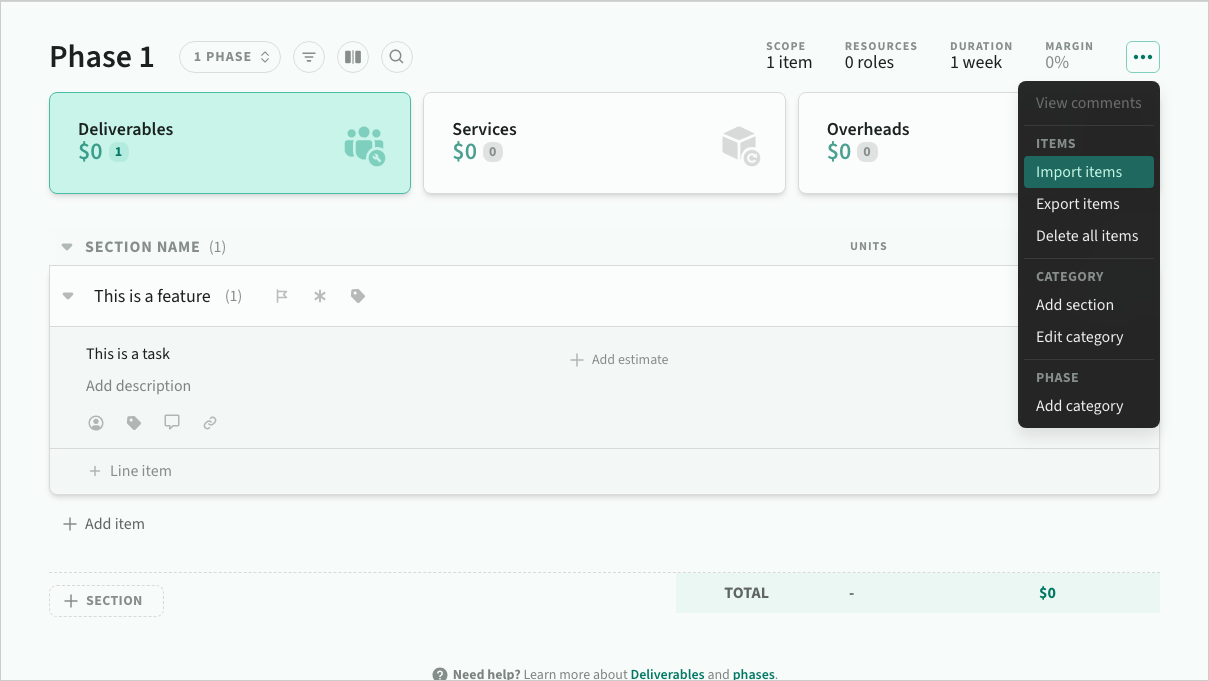 Importing items from the action menu
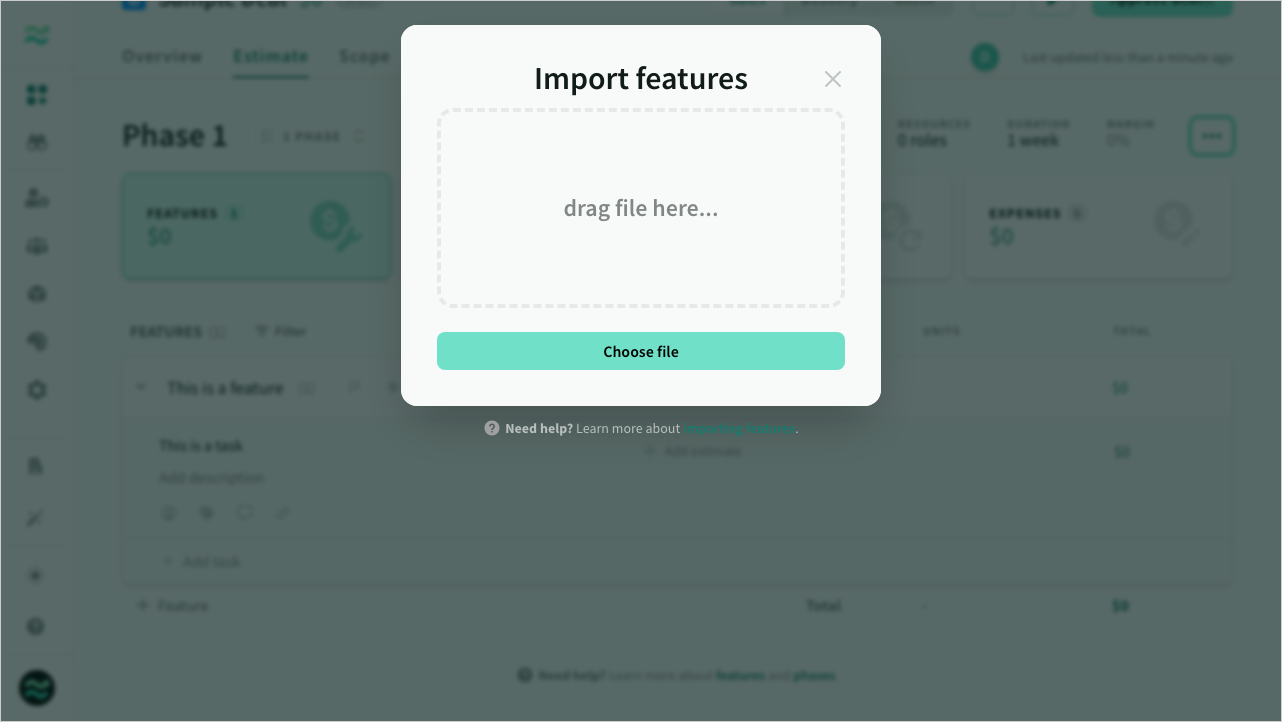 The item import dialog
CSV format
Both import and export use the same format that supports multiple items and line items in order.
| Column | Description | Allowed values/length | Notes |
|---|---|---|---|
| Item | Item name | Maximum 60 characters | Required |
| Category | Category name | Must match a category in the phase | Optional |
| Section | Section name | Maximum 60 characters | Optional |
| Priority | Item priority | None, Low, Normal, High, Critical | Required |
| Risk | Item risk | None, Low, Normal, High | Required |
| Line item | Line item name | Maximum 60 characters | Line items only |
| Description | Line item description | Maximum 240 characters | Line items only |
| Resource | The name of a resource | Maximum 20 per line item | Line items only |
| Estimate | The resource time value | Number (float) | Line items only |
| Unit | The resource time period | hour, day, week, sprint, month or year | Line items only |
CSV example
Item,Category,Section,Priority,Risk,Line Item,Description,Resource,Estimate,Unit
This is a sample item,Deliverables,,None,None,This is a line item with a single estimate,,Developer,1,day
,,,,,This is a line item with a description,"This is a description with **bold**, *italic* and ~~strikethrough~~ text
- This is a bullet
- This is a another bullet",Developer,1,day
,,,,,This is a line item with multiple estimates and time periods,,Developer,4,hour
,,,,,,,,Designer,1,week
,,,,,This is a line item without estimates (aka an assumption),,,,,
Users & Accounts,Deliverables,Frontend,Low,Normal,Users can sign up with email and password,"- Assumes availability of SAML V2.0-compliant identity provider such as Active Directory
- No data migration of existing user credentials",Developer,2,day
,,,,,,,,Designer,4,hour
,,,,,Users can sign up via social provider,"Included social providers:
- Facebook
- Twitter
- Google",Developer,2,day
,,,,,Implement invitation email,,Developer,2,day
,,,,,Support multi-tenant accounts,,Developer,3,day
,,,,,Allow users to add a custom domain,,Developer,4,day